



Kanban
What is Kanban?
Kanban itself is a method and methodology of a management approach used for managing workflows and project processes. Kanban is a visualization tool for effective management and tracking of work progress.
Imagine the Kanban as a visual board where at the start of the week we dump all tasks, ideas for tasks or, say, orders. The board is split into 4 parts, where at the beginning we have all the tasks we dumped there and put up for the team. In a meeting we then split the individual tasks in the process into planned, in progress and done.

Why do you need a Kanban?
We have built Projektově 2 so that it is as easy to use as possible. There is no need to always use a cannon to swat a fly. For smaller projects, or to consolidate a process, it is handy to use a Kanban board. The first column functions as a backlog of new tasks. In a chosen project you can simply add new tasks. Then in a meeting you split the tasks and drag them with the mouse into the planned, in progress or done states. At a glance you see on the Kanban board what state the tasks are in.
How the kanban works
Kanban in the Projektově application displays in a chosen project a clear board with four columns.
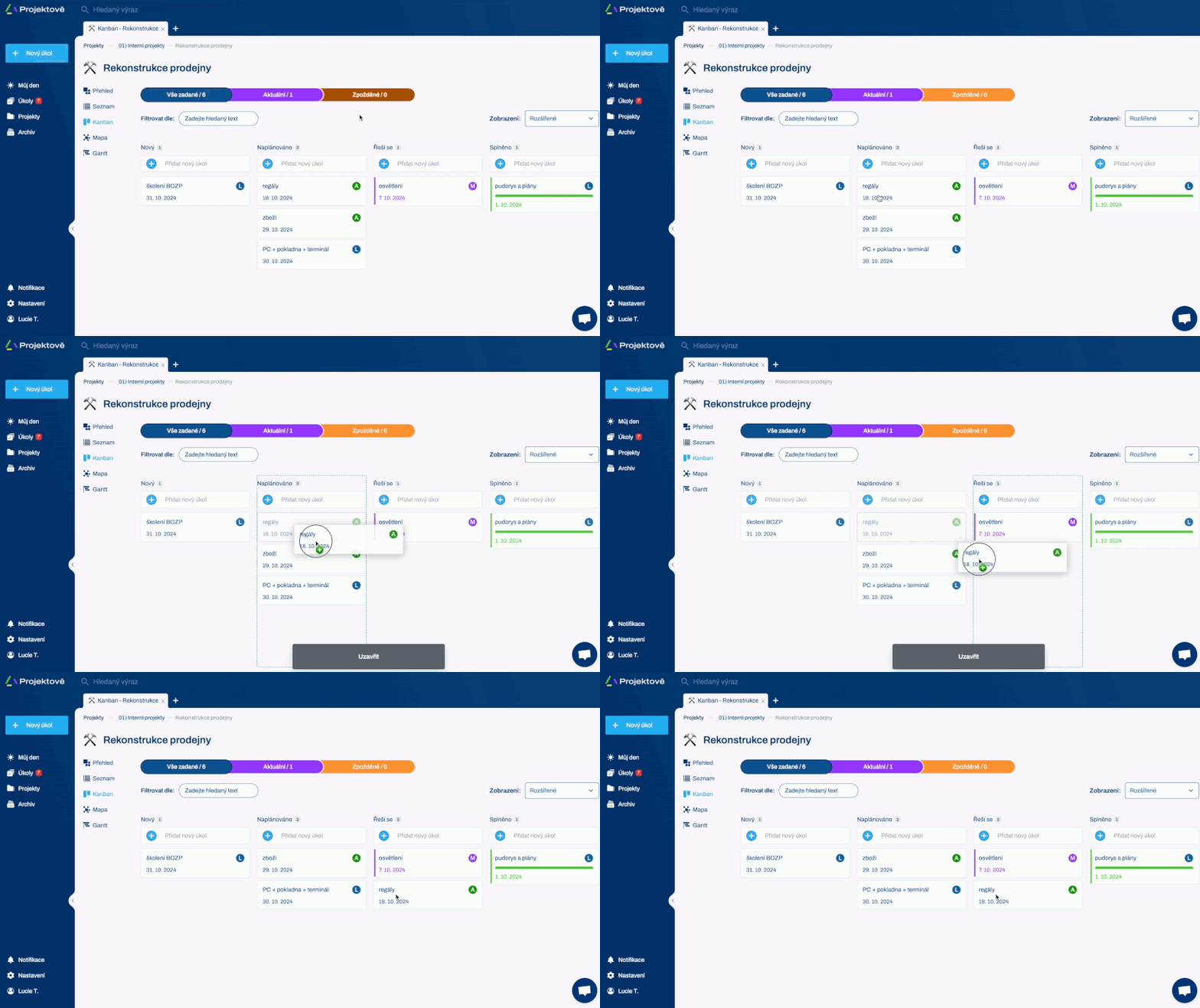
The first column contains all the new tasks, ideas for tasks or suggestions that you mark in the project before the meeting. Then in the meeting you go through them, fill in the description, assignee and deadline and, if the task is accepted, move it to the Planned state.
After the meeting, each assignee sees the current tasks to work on. They pick from the Planned column, and as soon as they start working on a task, they move it to the In progress column.

The last column is Done – resolved. In the Done column are tasks finished from the assignee's point of view.
At the next meeting the manager then goes through the completed tasks, among other things, and either returns them to in-progress, or by dragging them into the bottom rectangle "Close" confirms completion and hides them.
Overview thanks to Kanban
With the help of the kanban you can simply track the status of individual tasks. Just grab them with the mouse and move them to the next column where they will be in a new state.
Kanban is a great tool for any meeting. You can easily fill the first column with work and then split tasks by information into the states they are in.
Explore more changes and news
Structural folders
Tabs and pinning
Main menu
Search
Summary or detail
In a project
Report by assignee
Filter by date
Pre-built reports
Pinned
Custom
Shared
Working with the app
Project consultations
Team trainings
Webinars